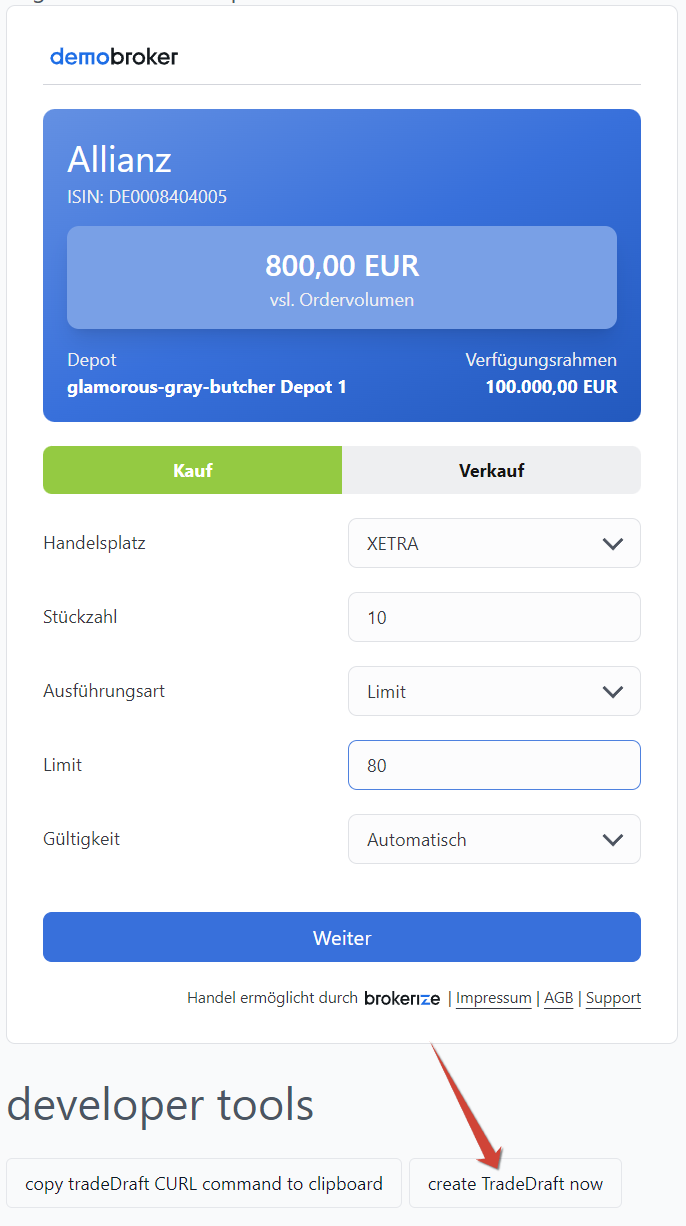
Trade Drafts
Trade Drafts enable automated generation of trade suggestions, for example via a bot. Only a few clicks are then required to actually execute the trade. The path to trading is thus much faster and more convenient than with manual input. At the same time, you retain full control over your trades.
Usage / License
The use of Trade Drafts is free of charge for private users.
Preparation / Token Generation
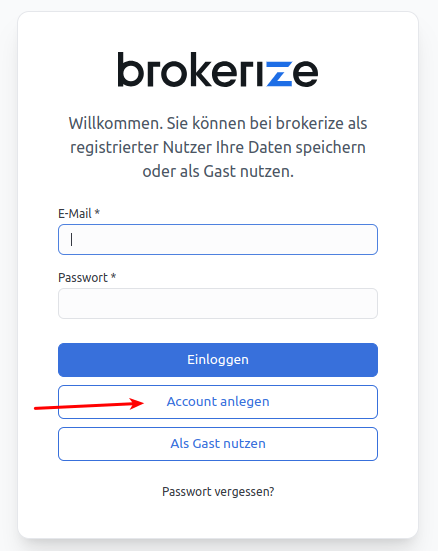
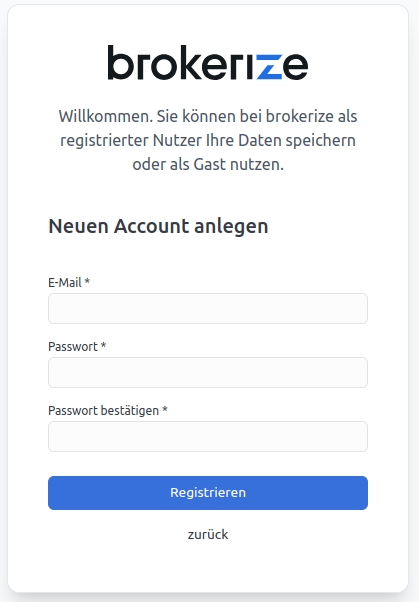
Please first create a brokerize account to use Trade Drafts. Please register at app.brokerize.com. Please then log in on the same page. On first login, you will need a confirmation code that you will have received by email. After successful login, you can log in directly with the broker through which you want to trade later.
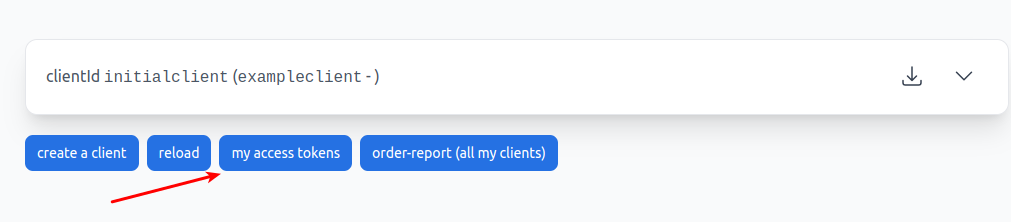
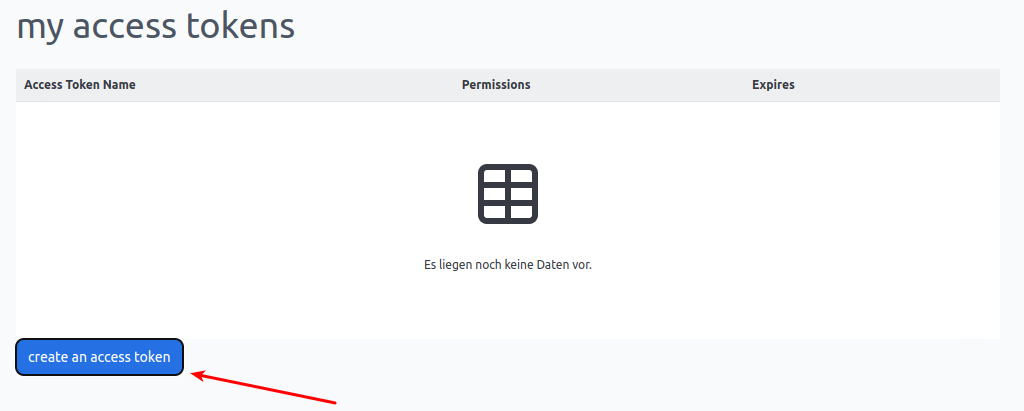
For your account to receive the right to create Trade Drafts, an access token must now be created. Please click on the "admin" button in the menu bar at the top right and then on "my access tokens". You can create an access token via the "create an access token" button.
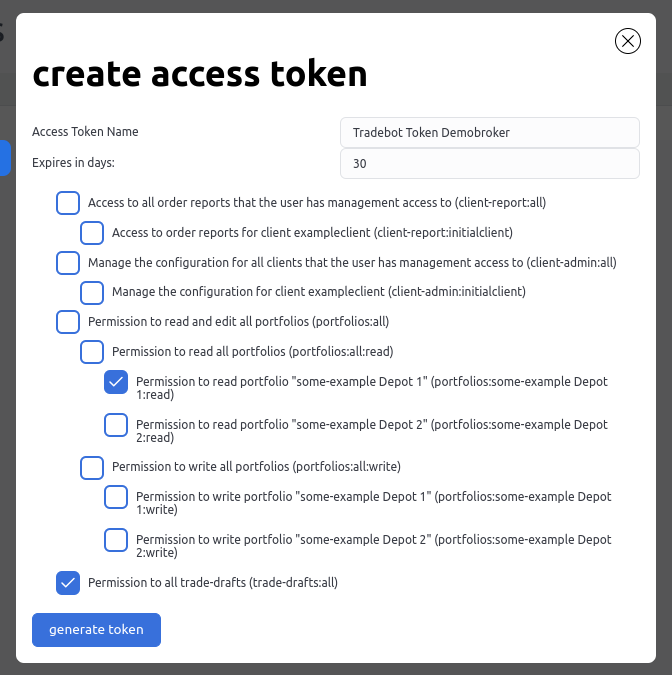
Please assign any name and adjust the token's runtime if necessary. Please also select "Permission to all trade-drafts (trade-drafts:all)" so that the token receives permission to create Trade Drafts. Also select the portfolio for which the token should receive read permission (this requires that you are already logged in with a broker).
After creating the token, a notice with the actual token is displayed. Please copy this token as it will not be visible later. However, you can create a new token at any time if you have lost the old token or it has expired.
Trade Drafts can be created via a REST interface. The following data is expected by the interface. The Exchange ID definable in the body can be retrieved via the REST route GET /exchanges for the searched exchange. The configuration of the orderData object naturally depends somewhat on the respective trade. The underlying interface TradeDraftOrderCreate can be viewed in the official API documentation.
-
Trade Draft Request Raw Configuration
Method:
POSTURL: https://api.brokerize.com
Header:
X-Access-Token:
<ACCESSTOKEN_STRING>X-Brkrz-Client-Id: G6l0j9y7PxQu2zMW
Body:
{"orderData": {"portfolioId": "<PORTFOLIO_ID>","orderModel": "market","validity": {"type": "IOC"},"size": 42,"direction": "buy or sell","exchangeId": "<EXCHANGE_ID>","security": {"name": "<INSTRUMENT_NAME>","selector": {"isin": "<INSTRUMENT_ISIN>"}}},"description": "Description of this trade suggestion"} -
Trade Draft curl
curl --request POST \--url https://api.brokerize.com/tradeDrafts \--header 'X-Access-Token: <ACCESSTOKEN_STRING>' \--header 'X-Brkrz-Client-Id: G6l0j9y7PxQu2zMW' \--data '{"orderData": {"portfolioId": "<PORTFOLIO_ID>","orderModel": "market","validity": {"type": "GFD"},"size": 42,"direction": "buy or sell","exchangeId": "<EXCHANGE_ID>","security": {"name": "<INSTRUMENT_NAME>","selector": {"isin": "<INSTRUMENT_ISIN>"}}},"description": "Description of this trade suggestion"}' -
Exchanges Request Configuration
Method:
GETURL: https://api.brokerize.com
Header:
X-Brkrz-Client-Id: G6l0j9y7PxQu2zMW
-
Exchanges curl
curl --request GET \--url https://api.brokerize.com/exchanges \--header 'X-Brkrz-Client-Id: G6l0j9y7PxQu2zMW'
Trade Draft Overview/Approval
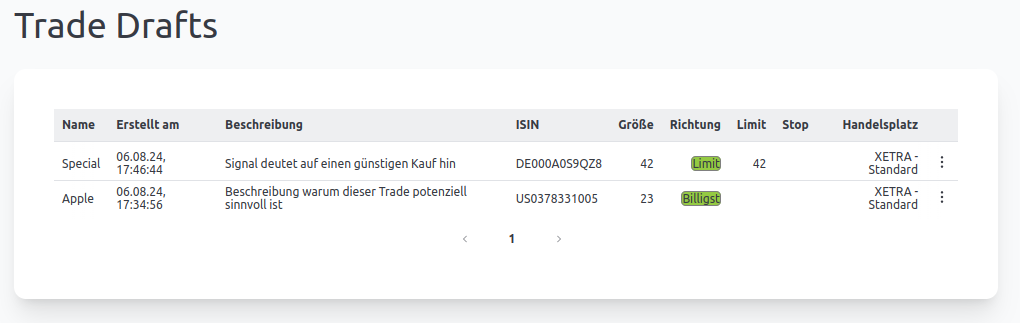
When you are logged into your brokerize account, you will find the "Trade Drafts" menu item in the top bar. When you click on it, you get a list of the generated Trade Drafts. On the far right of each row you will find the actions (three dots). There you can discard the trade or open it in the order form. In the form, you can check the order details again if necessary and place the order.
Creating Trade Drafts Manually
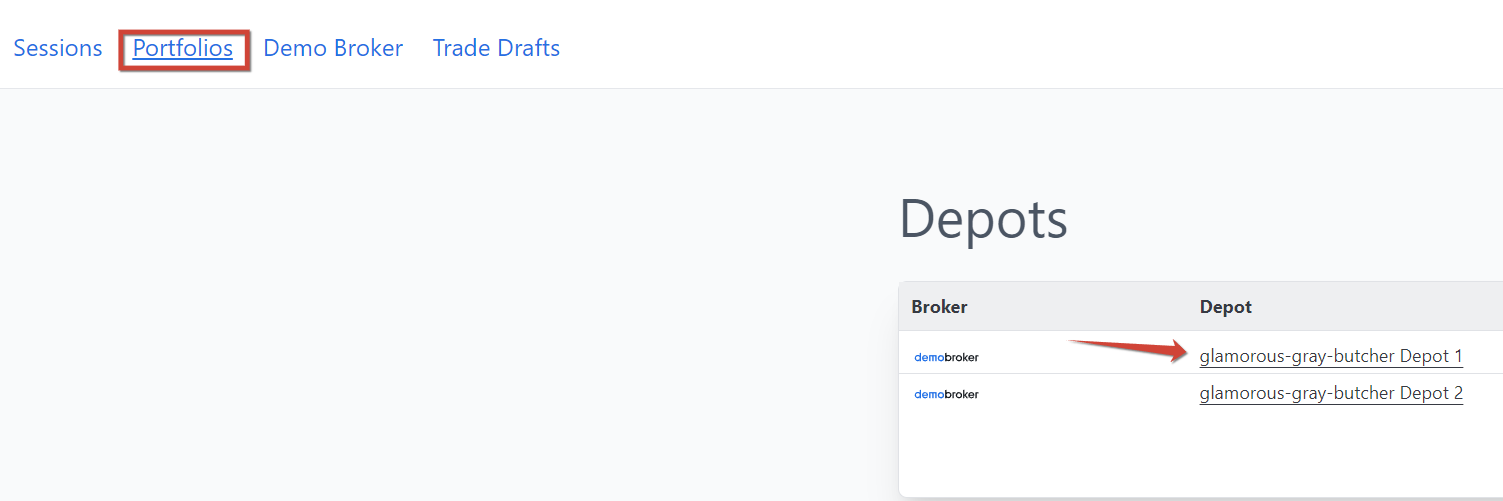
To test the path from a Trade Draft to order execution, you can also create Trade Drafts manually. Please click on "Portfolios" in the menu and then on a depot.
The depot view now opens. You can open the order form by entering an ISIN in the corresponding field and clicking on "Open Order Form".

Now set the desired order details in the order form and then click on "create TradeDraft now".